Showing posts with label Web Services. Show all posts

Tuesday, 30 May 2023

A Comprehensive React Native Tutorial: Building an App with User Database, Web API Integration, Charts, and Payment Integration.

React Native has emerged as a powerful framework for building cross-platform mobile applications using JavaScript and React. In this tutorial, we will explore how to create a feature-rich app using React Native that includes user database functionality, web API integration, charts for data visualization, and payment integration. By the end of this tutorial, you'll have a solid understanding of these key aspects and be equipped to develop your own robust mobile apps.

Prerequisites:

Before diving into this tutorial, you should have a basic understanding of JavaScript, React, and React Native. Additionally, familiarity with RESTful APIs and database concepts will be helpful.

Refer the below link for complete sample code:-

Download Sample Code

Let's get started with the step-by-step tutorial:

Step 1: Setting up the React Native Project

To begin, ensure that you have Node.js and npm installed on your machine. Create a new React Native project using the following command:

npx react-native init MyApp

Step 2: User Database
Implementing a user database is essential for many applications. We'll use Firebase, a cloud-based platform, to store and manage user data. Sign up for a Firebase account and create a new project.
Configure Firebase in your React Native app by adding the necessary credentials.
Next, install the Firebase SDK by running the following command within your project directory:

npm install firebase

Step 3: Web API Integration
To interact with web APIs, we'll use the popular fetch function provided by React Native. Create a new file, api.js, and define functions to handle API requests. You can make use of fetch and other JavaScript techniques to fetch data, send POST requests, etc.

Step 4: Data Visualization with Charts
React Native offers several charting libraries, such as Victory Native and React Native Charts Wrapper, that can be used to create visually appealing charts. Install a charting library of your choice and explore its documentation to learn how to create different types of charts, such as line charts, bar charts, or pie charts. Use the fetched data from the API in Step 3 to populate the charts.

Step 5: Payment Integration
To enable payment functionality, we'll integrate a payment gateway into our app. Popular options include Stripe, PayPal, or Braintree. Select a payment gateway of your choice, create an account, and follow their documentation to set up payment integration within your React Native app. Implement features like accepting payments, handling callbacks, and updating user data accordingly.

Step 6: User Interface and Navigation
Design an intuitive and user-friendly interface for your app using React Native's built-in components or third-party libraries like React Navigation. Create navigation flows between screens and ensure seamless user experience.

Step 7: Testing and Deployment
Testing your app thoroughly is crucial before deploying it to production. Utilize testing frameworks like Jest and Enzyme to write unit tests for your components and integration tests for your API calls. Once you're satisfied with the app's functionality and stability, prepare it for deployment. For Android, generate a signed APK, and for iOS, create an archive and submit it to the App Store.


Conclusion:
Congratulations! You have successfully built a feature-rich React Native app with user database functionality, web API integration, charts for data visualization, and payment integration. This tutorial has provided a comprehensive overview of each aspect, empowering you to build powerful and versatile mobile applications. Keep exploring React Native's vast ecosystem to enhance your app further and leverage its full potential. Happy coding!

Thursday, 14 February 2019

HB Blog 164: Google Sign-In Using Firebase.

Hello Guys, you can let your users authenticate with Firebase using their Google Accounts by integrating Google Sign-In into your app. Basically, it helps to avoid user to fill up the signup forms and provide them facility of single sign-on.
There are many other social media option available too such as Facebook, etc. In this tutorial, lets us start with Google Sign-In that will let your users authenticate their Google Accounts into your app.

Refer the below link for complete sample code:-

Download Sample Code

Have a look on few code snippets,

//activity_main.xml
 1
 2
 3
 4
 5
 6
 7
 8
 9
10
11
12
13
14
15
16
17
18
19
20
21
22
<?xml version="1.0" encoding="utf-8"?>
<LinearLayout xmlns:android="http://schemas.android.com/apk/res/android"
    xmlns:app="http://schemas.android.com/apk/res-auto"
    android:layout_width="match_parent"
    android:layout_margin="16dp"
    android:gravity="center"
    android:orientation="vertical"
    android:layout_height="match_parent">

    <com.google.android.gms.common.SignInButton
        android:id="@+id/btn_login_googleplus"
        android:layout_width="match_parent"
        android:layout_gravity="center"
        android:layout_height="wrap_content" />

    <Button
        android:id="@+id/btn_signout"
        android:layout_width="match_parent"
        android:layout_gravity="center"
        android:text="Sign Out"
        android:layout_height="wrap_content" />
</LinearLayout>

//MainActivity.java
  1
  2
  3
  4
  5
  6
  7
  8
  9
 10
 11
 12
 13
 14
 15
 16
 17
 18
 19
 20
 21
 22
 23
 24
 25
 26
 27
 28
 29
 30
 31
 32
 33
 34
 35
 36
 37
 38
 39
 40
 41
 42
 43
 44
 45
 46
 47
 48
 49
 50
 51
 52
 53
 54
 55
 56
 57
 58
 59
 60
 61
 62
 63
 64
 65
 66
 67
 68
 69
 70
 71
 72
 73
 74
 75
 76
 77
 78
 79
 80
 81
 82
 83
 84
 85
 86
 87
 88
 89
 90
 91
 92
 93
 94
 95
 96
 97
 98
 99
100
101
102
103
104
105
106
107
108
109
110
111
112
113
114
115
116
117
118
119
120
121
122
123
124
125
126
127
128
129
130
131
132
package com.harshalbenake.firebasegooglesignin;

import android.content.Intent;
import android.support.annotation.NonNull;
import android.support.v7.app.AppCompatActivity;
import android.os.Bundle;
import android.util.Log;
import android.view.View;
import android.widget.Button;

import com.google.android.gms.auth.api.signin.GoogleSignIn;
import com.google.android.gms.auth.api.signin.GoogleSignInAccount;
import com.google.android.gms.auth.api.signin.GoogleSignInClient;
import com.google.android.gms.auth.api.signin.GoogleSignInOptions;
import com.google.android.gms.common.SignInButton;
import com.google.android.gms.common.api.ApiException;
import com.google.android.gms.tasks.OnCompleteListener;
import com.google.android.gms.tasks.Task;
import com.google.firebase.FirebaseApp;
import com.google.firebase.auth.AuthCredential;
import com.google.firebase.auth.AuthResult;
import com.google.firebase.auth.FirebaseAuth;
import com.google.firebase.auth.FirebaseUser;
import com.google.firebase.auth.GoogleAuthProvider;

public class MainActivity extends AppCompatActivity {
    private static final int RC_SIGN_IN = 1000;
    private FirebaseAuth mAuth;
    private GoogleSignInClient mGoogleSignInClient;

    @Override
    protected void onCreate(Bundle savedInstanceState) {
        super.onCreate(savedInstanceState);
        setContentView(R.layout.activity_main);

        initGoogleSignIn();
    }

    @Override
    public void onStart() {
        super.onStart();
        // Check if user is signed in (non-null) and update UI accordingly.
//        FirebaseUser currentUser = mAuth.getCurrentUser();
//        updateUI(currentUser);
    }

    private void initGoogleSignIn() {
        FirebaseApp.initializeApp(this);
        mAuth = FirebaseAuth.getInstance();

        // Configure Google Sign In
        GoogleSignInOptions googleSignInOptions = new GoogleSignInOptions.Builder(GoogleSignInOptions.DEFAULT_SIGN_IN)
                .requestIdToken("xxxrequestIdTokenxxx")
                .requestEmail()
                .build();
        mGoogleSignInClient = GoogleSignIn.getClient(this, googleSignInOptions);

        SignInButton btn_login_googleplus=(SignInButton)findViewById(R.id.btn_login_googleplus);
        btn_login_googleplus.setOnClickListener(new View.OnClickListener() {
            @Override
            public void onClick(View view) {
                signIn();
            }
        });

        Button btn_signout=(Button)findViewById(R.id.btn_signout);
        btn_signout.setOnClickListener(new View.OnClickListener() {
            @Override
            public void onClick(View view) {
                signOut();
            }
        });

    }

    /**
     * signs In
     */
    private void signIn() {
        Intent signInIntent = mGoogleSignInClient.getSignInIntent();
        startActivityForResult(signInIntent, RC_SIGN_IN);
    }

    /**
     * sign Out
     */
    private void signOut(){
        FirebaseAuth.getInstance().signOut();
    }

    /**
     * firebase Auths With Google
     * @param acct
     */
    private void firebaseAuthWithGoogle(GoogleSignInAccount acct) {
        System.out.println("firebaseAuthWithGoogle:" + acct.getId());
        AuthCredential credential = GoogleAuthProvider.getCredential(acct.getIdToken(), null);
        mAuth.signInWithCredential(credential)
                .addOnCompleteListener(this, new OnCompleteListener<AuthResult>() {
                    @Override
                    public void onComplete(@NonNull Task<AuthResult> task) {
                        if (task.isSuccessful()) {
                            // Sign in success, update UI with the signed-in user's information
                            System.out.println("signInWithCredential:success");
                            FirebaseUser user = mAuth.getCurrentUser();
                            System.out.println(user.getEmail()+" data: "+user.getDisplayName());
//                            updateUI(user);
                        } else {
                            System.out.println("signInWithCredential:failure "+task.getException());
                        }
                    }
                });
    }

    @Override
    public void onActivityResult(int requestCode, int resultCode, Intent data) {
        super.onActivityResult(requestCode, resultCode, data);

        // Result returned from launching the Intent from GoogleSignInApi.getSignInIntent(...);
        if (requestCode == RC_SIGN_IN) {
            Task<GoogleSignInAccount> task = GoogleSignIn.getSignedInAccountFromIntent(data);
            try {
                // Google Sign In was successful, authenticate with Firebase
                GoogleSignInAccount account = task.getResult(ApiException.class);
                firebaseAuthWithGoogle(account);
            } catch (ApiException e) {
                System.out.println("Google sign in failed");
            }
        }
    }

}

Monday, 14 January 2019

HB Blog 163: Calculate Users Steps Using Google Fit Api.

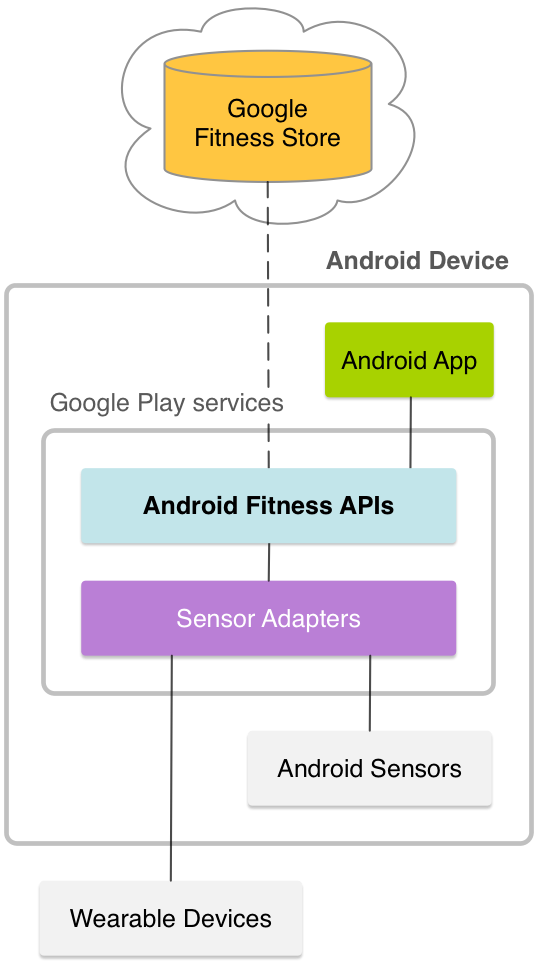
The Google Fit APIs for Android are part of Google Play services and consists of these APIs:

  • The Sensors API provides access to raw sensor data streams from sensors available on the Android device and from sensors available in companion devices, such as wearables.
  • The Recording API provides automated storage of fitness data using subscriptions. Google Fit stores fitness data of the specified types in the background and persists app subscriptions.

Google Fit diagram
Figure 1: Google Fit on Android.
  • The History API provides access to the fitness history and lets apps perform bulk operations, like inserting, deleting, and reading fitness data. Apps can also import batch data into Google Fit.
  • The Sessions API provides functionality to store fitness data with session metadata. Sessions represent a time interval during which users perform a fitness activity.
  • The Goals API provides a way to track the goals the user has set for their health and fitness progress.
  • The Bluetooth Low Energy API provides access to Bluetooth Low Energy sensors in Google Fit. This API enables your app to look for available BLE devices and to store data from them in the fitness store.
  • The Config API provides custom data types and additional settings for Google Fit. For more information, see Custom Data Types andDisconnect from Google Fit.

Google Fit also provides simple access to the daily total of a specified data type. Use the HistoryClient.readDailyTotal() method to retrieve the data type that you specify as of midnight of the current day in the device's current timezone. For example, pass in the TYPE_STEP_COUNT_DELTA data type to this method to retrieve the daily total steps.

Refer the below link for complete sample code:-

Download Sample Code

Have a look on few code snippets,

//MainActivity.java
  1
  2
  3
  4
  5
  6
  7
  8
  9
 10
 11
 12
 13
 14
 15
 16
 17
 18
 19
 20
 21
 22
 23
 24
 25
 26
 27
 28
 29
 30
 31
 32
 33
 34
 35
 36
 37
 38
 39
 40
 41
 42
 43
 44
 45
 46
 47
 48
 49
 50
 51
 52
 53
 54
 55
 56
 57
 58
 59
 60
 61
 62
 63
 64
 65
 66
 67
 68
 69
 70
 71
 72
 73
 74
 75
 76
 77
 78
 79
 80
 81
 82
 83
 84
 85
 86
 87
 88
 89
 90
 91
 92
 93
 94
 95
 96
 97
 98
 99
100
101
102
103
104
105
106
107
108
109
110
111
112
113
114
115
116
117
118
119
120
121
122
123
124
125
126
127
128
129
130
131
132
133
134
135
136
137
138
139
140
141
142
143
144
145
146
147
148
149
150
151
152
153
154
155
156
157
158
159
160
161
162
163
164
165
166
167
168
169
170
171
172
173
174
175
176
177
178
179
180
181
182
183
184
185
186
187
188
189
190
191
192
193
194
195
196
197
198
199
200
201
202
203
204
205
206
207
208
209
package com.harshalbenake.fitnesss;


import android.app.Notification;
import android.app.NotificationManager;
import android.app.PendingIntent;
import android.content.BroadcastReceiver;
import android.content.Context;
import android.content.Intent;
import android.content.IntentFilter;
import android.content.IntentSender;
import android.graphics.Bitmap;
import android.os.AsyncTask;
import android.os.Bundle;
import android.support.annotation.NonNull;
import android.support.v4.app.NotificationCompat;
import android.support.v4.app.NotificationManagerCompat;
import android.support.v4.content.LocalBroadcastManager;
import android.support.v7.app.AppCompatActivity;
import android.util.Log;
import android.widget.TextView;

import com.google.android.gms.common.ConnectionResult;
import com.google.android.gms.common.GooglePlayServicesUtil;
import com.google.android.gms.common.Scopes;
import com.google.android.gms.common.api.GoogleApiClient;
import com.google.android.gms.common.api.PendingResult;
import com.google.android.gms.common.api.Scope;
import com.google.android.gms.fitness.Fitness;
import com.google.android.gms.fitness.data.DataSet;
import com.google.android.gms.fitness.data.DataType;
import com.google.android.gms.fitness.data.Field;
import com.google.android.gms.fitness.result.DailyTotalResult;
import com.google.android.gms.location.ActivityRecognition;

import java.util.concurrent.TimeUnit;

public class MainActivity extends AppCompatActivity {

    public static final String TAG = "googlefit";
    private static final int REQUEST_OAUTH = 1000;
    private boolean authInProgress = false;
    private GoogleApiClient mClient = null;
    public TextView mtv_logs;

    @Override
    protected void onCreate(Bundle savedInstanceState) {
        super.onCreate(savedInstanceState);
        setContentView(R.layout.activity_main);
        mtv_logs = (TextView) findViewById(R.id.tv_logs);
        LocalBroadcastManager.getInstance(this).registerReceiver(mMessageReceiver,
                new IntentFilter(TAG));
        // Create the Google API Client
        mClient = new GoogleApiClient.Builder(this)
                .addApi(Fitness.HISTORY_API)
                .addApi(Fitness.CONFIG_API)
                .addApi(ActivityRecognition.API)
                .addScope(new Scope(Scopes.FITNESS_ACTIVITY_READ))
                .useDefaultAccount()
                .addConnectionCallbacks(
                        new GoogleApiClient.ConnectionCallbacks() {

                            @Override
                            public void onConnected(Bundle bundle) {
                                //Async To fetch steps
                                new FetchStepsAsync().execute();
                            }

                            @Override
                            public void onConnectionSuspended(int i) {
                                // If your connection to the sensor gets lost at some point,
                                // you'll be able to determine the reason and react to it here.
                                if (i == GoogleApiClient.ConnectionCallbacks.CAUSE_NETWORK_LOST) {
                                    Log.i(TAG, "Connection lost.  Cause: Network Lost.");
                                } else if (i == GoogleApiClient.ConnectionCallbacks.CAUSE_SERVICE_DISCONNECTED) {
                                    Log.i(TAG, "Connection lost.  Reason: Service Disconnected");
                                }
                            }
                        }
                ).addOnConnectionFailedListener(
                        new GoogleApiClient.OnConnectionFailedListener() {
                            @Override
                            public void onConnectionFailed(@NonNull ConnectionResult result) {
                                // Called whenever the API client fails to connect.

                                Log.i(TAG, "Connection failed. Cause: " + result.toString());
                                if (!result.hasResolution()) {
                                    // Show the localized error dialog
                                   GooglePlayServicesUtil.getErrorDialog(result.getErrorCode(),
                                            MainActivity.this, 0).show();
                                    return;
                                }
                                // The failure has a resolution. Resolve it.
                                // Called typically when the app is not yet authorized, and an
                                // authorization dialog is displayed to the user.
                                if (!authInProgress) {
                                    try {
                                        Log.i(TAG, "Attempting to resolve failed connection");
                                        authInProgress = true;
                                        result.startResolutionForResult(MainActivity.this, REQUEST_OAUTH);
                                    } catch (IntentSender.SendIntentException e) {
                                        Log.e(TAG,
                                                "Exception while starting resolution activity", e);
                                    }
                                }
                            }
                        }
                ).build();
        mClient.connect();
    }


    @Override
    protected void onDestroy() {
        // Unregister since the activity is about to be closed.
        LocalBroadcastManager.getInstance(this).unregisterReceiver(mMessageReceiver);
        super.onDestroy();
    }

    private class FetchStepsAsync extends AsyncTask<Object, Object, Long> {
        protected Long doInBackground(Object... params) {
            long total = 0;
            PendingResult<DailyTotalResult> result = Fitness.HistoryApi.readDailyTotal(mClient, DataType.TYPE_STEP_COUNT_DELTA);
            DailyTotalResult totalResult = result.await(30, TimeUnit.SECONDS);
            if (totalResult.getStatus().isSuccess()) {
                DataSet totalSet = totalResult.getTotal();
                if (totalSet != null) {
                    total = totalSet.isEmpty()
                            ? 0
                            : totalSet.getDataPoints().get(0).getValue(Field.FIELD_STEPS).asInt();
                }
            } else {
                Log.w(TAG, "There was a problem getting the step count.");
            }
            return total;
        }


        @Override
        protected void onPostExecute(Long aLong) {
            super.onPostExecute(aLong);
            //Total steps covered for that day
            Log.i(TAG, "Total steps: " + aLong);
            mtv_logs.setText(mtv_logs.getText().toString() + "Total steps: " + aLong);
            new FetchCalorieAsync().execute();
        }
    }

    private class FetchCalorieAsync extends AsyncTask<Object, Object, Float> {
        protected Float doInBackground(Object... params) {
            float total = 0;
            try {
                PendingResult<DailyTotalResult> result = Fitness.HistoryApi.readDailyTotal(mClient, DataType.TYPE_CALORIES_EXPENDED);
                DailyTotalResult totalResult = result.await(30, TimeUnit.SECONDS);
                if (totalResult.getStatus().isSuccess()) {
                    DataSet totalSet = totalResult.getTotal();
                    if (totalSet != null) {
                        total = totalSet.getDataPoints().get(0).getValue(Field.FIELD_CALORIES).asFloat();
                    }
                } else {
                    Log.w(TAG, "There was a problem getting the calories.");
                }
            } catch (Exception e) {
                e.printStackTrace();
            }
            return total;
        }

        @Override
        protected void onPostExecute(Float aLong) {
            super.onPostExecute(aLong);
            //Total calories burned for that day
            Log.i(TAG, "Total calories: " + aLong);
            mtv_logs.setText(mtv_logs.getText().toString() + "\n" + "Total calories: " + aLong);
            Intent intent = new Intent(MainActivity.this, ActivityRecognizedService.class );
            PendingIntent pendingIntent = PendingIntent.getService(MainActivity.this, 0, intent, PendingIntent.FLAG_UPDATE_CURRENT );
            ActivityRecognition.ActivityRecognitionApi.requestActivityUpdates(mClient, 10, pendingIntent );

        }
    }

    // Our handler for received Intents. This will be called whenever an Intent
// with an action named "custom-event-name" is broadcasted.
    private BroadcastReceiver mMessageReceiver = new BroadcastReceiver() {
        @Override
        public void onReceive(Context context, Intent intent) {
            // Get extra data included in the Intent
            String message = intent.getStringExtra("message");
            Log.d("receiver", "Got message: " + message);
            mtv_logs.setText(mtv_logs.getText().toString() + "\n" + message);
            displayNotification(mtv_logs.getText().toString());
        }
    };

    private void displayNotification(String strMessage) {
        NotificationCompat.Builder mBuilder =
                new NotificationCompat.Builder(MainActivity.this)
                        .setSmallIcon(R.drawable.ic_launcher_round)
                        .setContentTitle("Fitness")
                        .setContentText(strMessage)
                        .setAutoCancel(true)
                        .setDefaults(Notification.DEFAULT_SOUND)
                        .setPriority(Notification.PRIORITY_HIGH);
            mBuilder.setStyle(new NotificationCompat.BigTextStyle().bigText(strMessage));
         NotificationManager mNotificationManager=(NotificationManager) getSystemService(Context.NOTIFICATION_SERVICE);
        // my_notification_idallows you to update the displayNotification later on.
        mNotificationManager.notify(1, mBuilder.build());
    }
}

//ActivityRecognizedService.java
 1
 2
 3
 4
 5
 6
 7
 8
 9
10
11
12
13
14
15
16
17
18
19
20
21
22
23
24
25
26
27
28
29
30
31
32
33
34
35
36
37
38
39
40
41
42
43
44
45
46
47
48
49
50
51
52
53
54
55
56
57
58
59
60
61
62
63
64
65
66
67
68
69
70
71
72
73
74
75
76
77
78
79
80
81
82
83
84
85
86
87
88
89
90
91
92
93
94
95
96
97
package com.harshalbenake.fitnesss;

import android.app.IntentService;
import android.content.Intent;
import android.support.annotation.Nullable;
import android.support.v4.app.NotificationCompat;
import android.support.v4.app.NotificationManagerCompat;
import android.support.v4.content.LocalBroadcastManager;
import android.util.Log;

import com.google.android.gms.location.ActivityRecognitionResult;
import com.google.android.gms.location.DetectedActivity;

import java.util.List;

public class ActivityRecognizedService extends IntentService {

    private String strConfidence="";

    public String getStrConfidence() {
        return strConfidence;
    }

    public void setStrConfidence(String strConfidence) {
        this.strConfidence = strConfidence;
    }
    public ActivityRecognizedService() {
        super("ActivityRecognizedService");
    }

    public ActivityRecognizedService(String name) {
        super(name);
    }

    @Override
    protected void onHandleIntent(Intent intent) {
        if(ActivityRecognitionResult.hasResult(intent)) {
            ActivityRecognitionResult result = ActivityRecognitionResult.extractResult(intent);
            handleDetectedActivities( result.getProbableActivities() );
        }
    }

    @Override
    public int onStartCommand(@Nullable Intent intent, int flags, int startId) {
        //   mContext =   ((MainActivity) getApplicationContext());
        return super.onStartCommand(intent, flags, startId);
    }

    private void handleDetectedActivities(List<DetectedActivity> probableActivities) {
        for( DetectedActivity activity : probableActivities ) {
            System.out.println("activity.getConfidence() : "+activity.getConfidence() );
            setStrConfidence("activity.getConfidence() : "+activity.getConfidence());
            String strType="";
            switch( activity.getType() ) {
                case DetectedActivity.IN_VEHICLE: {
                    strType="IN_VEHICLE";
                    break;
                }
                case DetectedActivity.ON_BICYCLE: {
                    strType="ON_BICYCLE";
                    break;
                }
                case DetectedActivity.ON_FOOT: {
                    strType="ON_FOOT";
                    break;
                }
                case DetectedActivity.RUNNING: {
                    strType="RUNNING";
                    break;
                }
                case DetectedActivity.STILL: {
                    strType="STILL";
                    break;
                }
                case DetectedActivity.TILTING: {
                    strType="TILTING";
                    break;
                }
                case DetectedActivity.WALKING: {
                    strType="WALKING";
                    break;
                }
                case DetectedActivity.UNKNOWN: {
                    strType="UNKNOWN";
                    break;
                }
            }

            Intent intent = new Intent(MainActivity.TAG);
            // You can also include some extra data.
            intent.putExtra("message",strType+" : "+activity.getConfidence());
            LocalBroadcastManager.getInstance(this).sendBroadcast(intent);
        }
    }


}