Showing posts with label Threads. Show all posts

Monday, 1 May 2017

HB Blog 134: Improve Android Applications Performance.

Hey guys, I hope you liked my previous post on app performance HB Blog 132: Does Your Phone Get Hang? Know Why...  . I got few mails and suggestions for posting similar kind of posts. So, here is my one more post for optimize your app's performance in various ways to improve its responsiveness and battery efficiency.
Basically, user expects app to launch app faster as well as load UI without any glitches. App launch can take place in one of three states, each affecting how long it takes for your app to become visible to the user: cold start, warm start, and lukewarm start. In a cold start, your app starts from scratch. In the other states, the system needs to bring the app from the background to the foreground.
At the beginning of a state, the system has three tasks. These tasks are:
  1.     Loading and launching the app.
  2.     Displaying a blank starting window for the app immediately after launch.
  3.     Creating the app process.
As soon as the system creates the app process, the app process is responsible for the next stages. These stages are:
  1.     Creating the app object.
  2.     Launching the main thread.
  3.     Creating the main activity.
  4.     Inflating views.
  5.     Laying out the screen.
  6.     Performing the initial draw.
There are few safety measures we can take for improving application performance such as,
  1. Remove unused resource IDs:- We often declare and find a view using android:id="@+id/view". But, while actual calling it in java classes is not needed. Sometimes, we don't need any changes in that particular view so e can avoid creating this ids. Because, these ids are creating public static final constant variable which are taking up unneeded memory.
  2. Remove unused resource:- Many times we keep on changing UI/UX so in that case we might add up resource but won't remove it once they are unused, so try to remove unused resource it may be images, icons as well as layout and other XML.
  3. Minimize load on onCreate():-  When your application launches, the blank starting window remains on the screen until the system finishes drawing the app for the first time. At that point, the system process swaps out the starting window for your app, allowing the user to start interacting with the app. If you’ve overloaded Application.oncreate() in your own app, the system invokes the onCreate() method on your app object. Afterwards, the app spawns the main thread, also known as the UI thread, and tasks it with creating your main activity. From Android 4.4 (API level 19), logcat includes an output line containing a value called Displayed. This value represents the amount of time elapsed between launching the process and finishing drawing the corresponding activity on the screen. We understand that which activity is taking more time for loading and using tools like Method Tracer, Inline Tracer, etc. It also gives which methods are the culprits, most of the time it is onCreate() method. We need to optimize the load of these method by initializing resource that are needed at startup itself. We can also use methods such as reportFullyDrawn() to let the system know that your activity is finished with its lazy loading.
  4. Use injection framework like Dagger:- Whether the problem lies with unnecessary initialization or disk I/O, the solution calls for lazy-initializing objects: initializing only those objects that are immediately needed. We can have a dependency injection framework like Dagger that creates objects and dependencies are when they are injected for the first time.
  5. Use Asynchronous operation:- Using a background thread ("worker thread") removes strain from the main thread so it can focus on drawing the UI. In many cases, using AsyncTask provides a simple way to perform your work outside the main thread. AsyncTask automatically queues up all the execute() requests and performs them serially. This behavior is global to a particular process and means you don’t need to worry about creating your own thread pool. For background database operations we can use compile statements can be used. Have a look on similar post for more information, HB Blog 95: How To Compile SQL Statement Into Reusable Pre-compiled Statement Object???
  6. Avoid Virtualization:- If you don't need to access an object's fields, make your method static. Invocations will be about 15%-20% faster. It's also good practice, because you can tell from the method signature that calling the method can't alter the object's state. In native languages like C++ it's common practice to use getters (i = getCount()) instead of accessing the field directly (i = mCount). This is an excellent habit for C++ and is often practiced in other object oriented languages like C# and Java, because the compiler can usually inline the access, and if you need to restrict or debug field access you can add the code at any time. However, this is a bad idea on Android. Virtual method calls are expensive, much more so than instance field lookups. It's reasonable to follow common object-oriented programming practices and have getters and setters in the public interface, but within a class you should always access fields directly.
  7. Use Enhanced For Loop Syntax:- The enhanced for loop (also sometimes known as "for-each" loop) can be used for collections that implement the Iterable interface and for arrays. There are several alternatives for iterating through an array:
     1
     2
     3
     4
     5
     6
     7
     8
     9
    10
    11
    12
    13
    14
    15
    16
    17
    18
    19
    20
    21
    22
    23
    24
    25
    26
    27
    28
    29
    static class Foo {
        int mSplat;
    }
    
    Foo[] mArray = ...
    
    public void zero() {
        int sum = 0;
        for (int i = 0; i < mArray.length; ++i) {
            sum += mArray[i].mSplat;
        }
    }
    
    public void one() {
        int sum = 0;
        Foo[] localArray = mArray;
        int len = localArray.length;
    
        for (int i = 0; i < len; ++i) {
            sum += localArray[i].mSplat;
        }
    }
    
    public void two() {
        int sum = 0;
        for (Foo a : mArray) {
            sum += a.mSplat;
        }
    }
    

    • zero() is slowest, because the JIT can't yet optimize away the cost of getting the array length once for every iteration through the loop. 
    • one() is faster. It pulls everything out into local variables, avoiding the lookups. Only the array length offers a performance benefit. 
    • two() is fastest for devices without a JIT, and indistinguishable from one() for devices with a JIT. It uses the enhanced for loop syntax introduced in version 1.5 of the Java programming language.
  8. Avoid complex Layout Hierarchies:- Layouts are a key part of Android applications that directly affect the user experience. If implemented poorly, your layout can lead to a memory hungry application with slow UIs. The Android SDK includes tools to help you identify problems in your layout performance, which will help to implement smooth scrolling interfaces with a minimum memory footprint. In the same way a complex web page can slow down load time, your layout hierarchy if too complex can also cause performance problems. If your application UI repeats certain layout constructs in multiple places, you can use the <include/> and <merge/> tags to embed another layout inside the current layout. Beyond simply including one layout component within another layout, you might want to make the included layout visible only when it's needed, sometime after the activity is running. Deferring loading resources is an important technique to use when you have complex views that your app might need in the future. You can implement this technique by defining a ViewStub for those complex and rarely used views.
  9. Use View Holder for listview:- Listview is one of the most important and very excessively used view. The key to a smoothly scrolling ListView is to keep the application’s main thread (the UI thread) free from heavy processing. Ensure you do any disk access, network access, or SQL access in a separate thread. The key to a smoothly scrolling ListView is to keep the application’s main thread (the UI thread) free from heavy processing. Ensure you do any disk access, network access, or SQL access in a separate thread. A way around repeated use of findViewById() is to use the "view holder" design pattern. A ViewHolder object stores each of the component views inside the tag field of the Layout, so you can immediately access them without the need to look them up repeatedly.
  10. Use 3rd party libraries carefully:- Actually, we use available libraries and resources for fasten our development time. It might not work as expected all the time and not all the design patterns and precautions are followed in these kinda libraries. So do explore complete libraries and then go for it. Android Arsenal is one of the interesting and helpful site which has categorized directory of libraries and tools for Android.

Saturday, 15 April 2017

HB Blog 133: Loader View Library For Android.

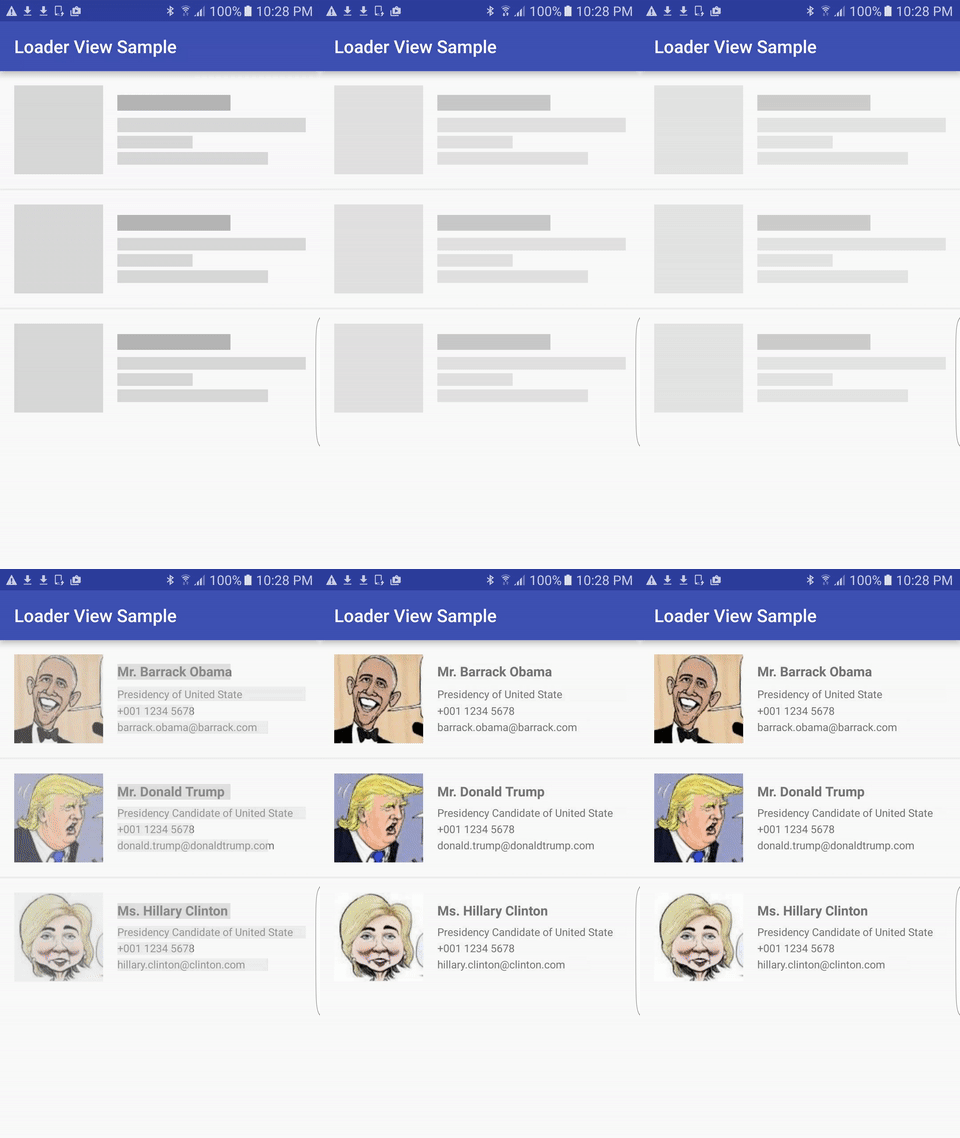
Now-a-days, people find animations and graphics pretty interesting. Mobile animations not only give an attractive user experience but, they also make the data loading process bearable for users. Users find progress bars, and loaders bit boring which make them loose interest in an application. There are many ways to handle these kinda problems.

In these post, I will show how to use a library for providing animations while loading data without user getting bored. These library is been developed to provide both TextView and ImageView the ability to show shimmer (animation loader) before any text or image is shown. Useful when waiting for data to be loaded from the network.

Refer the below link for complete sample code:-

Download Sample Code

Have a look on few code snippets,

//build.gradle
1
2
3
dependencies {
    compile 'com.elyeproj.libraries:loaderviewlibrary:1.3.0'
}

//activity_main.xml
 1
 2
 3
 4
 5
 6
 7
 8
 9
10
11
12
13
14
15
16
17
18
19
20
21
22
23
24
25
26
27
28
29
30
31
32
33
34
35
36
37
38
39
40
41
42
43
44
45
46
47
48
49
50
51
52
53
54
55
56
57
58
59
60
61
62
63
64
65
66
67
68
69
70
71
72
73
74
75
76
77
78
79
<?xml version="1.0" encoding="utf-8"?>
<LinearLayout xmlns:android="http://schemas.android.com/apk/res/android"
    xmlns:app="http://schemas.android.com/apk/res-auto"
    xmlns:tools="http://schemas.android.com/tools"
    android:layout_width="match_parent"
    android:layout_height="wrap_content"
    android:orientation="vertical">

    <RelativeLayout
        android:layout_width="match_parent"
        android:layout_margin="5dp"
        android:layout_height="wrap_content">

        <com.elyeproj.loaderviewlibrary.LoaderImageView
            android:id="@+id/image_icon"
            android:layout_width="100dp"
            android:layout_height="100dp"
            android:layout_marginEnd="16dp"
            android:layout_marginRight="16dp"
            app:use_gradient="true" />

        <LinearLayout
            android:id="@+id/container_text"
            android:layout_width="match_parent"
            android:layout_height="wrap_content"
            android:layout_centerVertical="true"
            android:layout_toEndOf="@id/image_icon"
            android:layout_toRightOf="@id/image_icon"
            android:orientation="vertical">

            <com.elyeproj.loaderviewlibrary.LoaderTextView
                android:id="@+id/txt_name"
                android:layout_width="match_parent"
                android:layout_height="wrap_content"
                android:textSize="@dimen/title_font_size"
                android:textStyle="bold"
                app:height_weight="0.8"
                app:use_gradient="true"
                app:width_weight="0.6" />

            <com.elyeproj.loaderviewlibrary.LoaderTextView
                android:id="@+id/txt_title"
                android:layout_width="match_parent"
                android:layout_height="wrap_content"
                android:layout_marginTop="8dp"
                android:textSize="@dimen/standard_font_size"
                app:height_weight="0.8"
                app:width_weight="1.0" />

            <com.elyeproj.loaderviewlibrary.LoaderTextView
                android:id="@+id/txt_phone"
                android:layout_width="match_parent"
                android:layout_height="wrap_content"
                android:layout_marginTop="4dp"
                android:textSize="@dimen/standard_font_size"
                app:height_weight="0.8"
                app:width_weight="0.4" />

            <com.elyeproj.loaderviewlibrary.LoaderTextView
                android:id="@+id/txt_email"
                android:layout_width="match_parent"
                android:layout_height="wrap_content"
                android:layout_marginTop="4dp"
                android:textSize="@dimen/standard_font_size"
                app:height_weight="0.8"
                app:width_weight="0.9" />

        </LinearLayout>

    </RelativeLayout>

    <Button
        android:id="@+id/btn_reset"
        android:layout_width="match_parent"
        android:layout_height="wrap_content"
        android:layout_margin="@dimen/activity_vertical_margin"
        android:onClick="resetLoader"
        android:text="Reset" />
</LinearLayout>

//MainActivity.java
 1
 2
 3
 4
 5
 6
 7
 8
 9
10
11
12
13
14
15
16
17
18
19
20
21
22
23
24
25
26
27
28
29
30
31
32
33
34
35
36
37
38
39
40
41
42
43
44
45
46
47
48
49
50
51
52
53
54
55
56
57
58
59
60
61
62
63
64
65
66
67
68
69
70
71
72
73
package com.example.harshalbenake.loaderviewanimation;

import android.os.AsyncTask;
import android.os.Bundle;
import android.support.v7.app.AppCompatActivity;
import android.view.View;
import android.widget.ImageView;
import android.widget.TextView;

import com.elyeproj.loaderviewlibrary.LoaderImageView;
import com.elyeproj.loaderviewlibrary.LoaderTextView;

public class MainActivity extends AppCompatActivity {

    private int WAIT_DURATION = 5000;
    private DummyWait dummyWait;

    @Override
    protected void onCreate(Bundle savedInstanceState) {
        super.onCreate(savedInstanceState);
        setContentView(R.layout.activity_main);
        loadData();
    }

    private void loadData() {
        if (dummyWait != null) {
            dummyWait.cancel(true);
        }
        dummyWait = new DummyWait();
        dummyWait.execute();
    }

    private void postLoadData() {
        ((TextView)findViewById(R.id.txt_name)).setText("Harshal Benake");
        ((TextView)findViewById(R.id.txt_title)).setText("Android Dev");
        ((TextView)findViewById(R.id.txt_phone)).setText("7588871488");
        ((TextView)findViewById(R.id.txt_email)).setText("harshalbenake@gmail.com");
        ((ImageView)findViewById(R.id.image_icon)).setImageResource(R.drawable.ic_launcher);
    }

    public void resetLoader(View view) {
        ((LoaderTextView)findViewById(R.id.txt_name)).resetLoader();
        ((LoaderTextView)findViewById(R.id.txt_title)).resetLoader();
        ((LoaderTextView)findViewById(R.id.txt_phone)).resetLoader();
        ((LoaderTextView)findViewById(R.id.txt_email)).resetLoader();
        ((LoaderImageView)findViewById(R.id.image_icon)).resetLoader();
        loadData();
    }

    class DummyWait extends AsyncTask<Void, Void, Void> {
        @Override
        protected void onPreExecute() {
            super.onPreExecute();
        }

        @Override
        protected Void doInBackground(Void... params) {
            try {
                Thread.sleep(WAIT_DURATION);
            } catch (InterruptedException e) {
                e.printStackTrace();
            }
            return null;
        }

        @Override
        protected void onPostExecute(Void result) {
            super.onPostExecute(result);
            postLoadData();
        }
    }

}

Friday, 15 April 2016

HB Blog 108: File Upload To Server In Android Programmatically.

A Web service is a method of communication between two electronic devices over a network.They are the integral part of Mobile development. Web service are of various types SOAP, REST, and XML-RPC. For basics of webservices you can follow my blog Basics of Web Services.

In this post, I will show how to upload files from Android mobile devices to the server network using HttpURLConnection class.

A URLConnection with support for HTTP-specific features.
  1. Obtain a new HttpURLConnection by calling URL.openConnection() and casting the result to HttpURLConnection.
  2. Prepare the request. The primary property of a request is its URI. Request headers may also include metadata such as credentials, preferred content types, and session cookies.
  3. Optionally upload a request body. Instances must be configured with setDoOutput(true) if they include a request body. Transmit data by writing to the stream returned by getOutputStream().
  4. Read the response. Response headers typically include metadata such as the response body's content type and length, modified dates and session cookies. The response body may be read from the stream returned by getInputStream(). If the response has no body, that method returns an empty stream.
  5. Disconnect. Once the response body has been read, the HttpURLConnection should be closed by calling disconnect(). Disconnecting releases the resources held by a connection so they may be closed or reused.
Refer the below link for complete sample code:-

Download Sample Code

Have a look on few code snippets,

//Async_ImageUpload.java
  1
  2
  3
  4
  5
  6
  7
  8
  9
 10
 11
 12
 13
 14
 15
 16
 17
 18
 19
 20
 21
 22
 23
 24
 25
 26
 27
 28
 29
 30
 31
 32
 33
 34
 35
 36
 37
 38
 39
 40
 41
 42
 43
 44
 45
 46
 47
 48
 49
 50
 51
 52
 53
 54
 55
 56
 57
 58
 59
 60
 61
 62
 63
 64
 65
 66
 67
 68
 69
 70
 71
 72
 73
 74
 75
 76
 77
 78
 79
 80
 81
 82
 83
 84
 85
 86
 87
 88
 89
 90
 91
 92
 93
 94
 95
 96
 97
 98
 99
100
101
102
103
104
105
106
107
108
109
110
111
112
113
114
115
116
117
118
119
120
121
122
123
124
125
126
127
128
129
130
131
132
133
134
135
136
137
138
139
140
141
142
143
144
145
146
147
148
149
150
151
152
153
154
155
156
157
158
159
160
161
162
163
164
165
166
167
168
169
170
171
172
173
174
175
176
177
178
179
180
181
182
183
184
185
186
187
188
189
190
191
192
193
194
195
196
197
198
199
200
201
202
203
204
205
206
207
208
209
210
211
212
213
214
215
216
217
218
219
220
221
package com.example.harshalbenake.imageupload;

import android.app.Activity;
import android.app.ProgressDialog;
import android.content.Context;
import android.content.Intent;
import android.graphics.Bitmap;
import android.graphics.BitmapFactory;
import android.net.ConnectivityManager;
import android.net.NetworkInfo;
import android.net.Uri;
import android.net.http.AndroidHttpClient;
import android.os.AsyncTask;
import android.os.Environment;
import android.util.Log;
import android.widget.Toast;

import org.apache.http.HttpEntity;
import org.apache.http.HttpResponse;
import org.apache.http.HttpStatus;
import org.apache.http.client.HttpClient;
import org.apache.http.client.methods.HttpGet;
import org.apache.http.client.methods.HttpPost;
import org.apache.http.entity.FileEntity;
import org.apache.http.entity.InputStreamEntity;
import org.apache.http.entity.StringEntity;
import org.apache.http.entity.mime.MultipartEntity;
import org.apache.http.entity.mime.MultipartEntityBuilder;
import org.apache.http.entity.mime.content.FileBody;
import org.apache.http.entity.mime.content.StringBody;
import org.apache.http.impl.client.DefaultHttpClient;
import org.apache.http.params.BasicHttpParams;
import org.apache.http.params.HttpConnectionParams;
import org.apache.http.params.HttpParams;
import org.apache.http.util.EntityUtils;
import org.json.JSONObject;

import java.io.DataOutputStream;
import java.io.File;
import java.io.FileInputStream;
import java.io.InputStream;
import java.net.HttpURLConnection;
import java.net.MalformedURLException;
import java.net.URL;
import java.net.URLEncoder;
import java.text.DateFormat;
import java.text.SimpleDateFormat;
import java.util.ArrayList;
import java.util.Date;

/**
 * This async task is used to send ImageUpload to server.
 * Created by <b>Harshal Benake</b> on 10/11/15.
 */
public class Async_ImageUpload extends AsyncTask<String, String, String> {
    private MainActivity mActivity;
    ProgressDialog progressDialog = null;
    private ResponseManager mResponseManager;
    private String status;

    public Async_ImageUpload(MainActivity activity) {
        this.mActivity = activity;
    }

    @Override
    protected void onPreExecute() {
        super.onPreExecute();
        if (isConnected(mActivity)) {
            progressDialog = new ProgressDialog(mActivity);
            progressDialog.setProgressStyle(android.R.attr.progressBarStyleLarge);
            progressDialog.setMessage("Loading");
            progressDialog.show();
            progressDialog.setCancelable(false);
        } else {
            System.out.println("Internet lost");
            cancel(true);
        }
    }

    @Override
    public String doInBackground(String... params) {
        if (!isCancelled()) {
            try {
                sendPostDataRegistrationWS();
                if (mResponseManager != null && mResponseManager.response != null
                        && !mResponseManager.response.equalsIgnoreCase("")) {
                    if (mResponseManager.status == ResponseManager.SC_OK) {
                        System.out.println("Async_ImageUpload response: " + mResponseManager.response);
                        JSONObject jsonObject = new JSONObject(mResponseManager.response);
                        status = jsonObject.optString("status");
                        String message = jsonObject.optString("message");
                        if (status != null && status.equalsIgnoreCase("200")) {

                        }
                        return message;
                    }
                }
            } catch (Exception e) {
                e.printStackTrace();
            }
        }
        return null;
    }

    @Override
    protected void onPostExecute(String message) {
        super.onPostExecute(message);
        if (progressDialog != null && progressDialog.isShowing()) {
            progressDialog.dismiss();
        }
        if (message != null && !message.equalsIgnoreCase("")) {
            System.out.println("message: " + message);
        }
    }

    /**
     * This method is use to check the device internet connectivity.
     *
     * @param context
     * @return true :if your device is connected to internet.
     * false :if your device is not connected to internet.
     */
    public static boolean isConnected(Context context) {
        ConnectivityManager manager = (ConnectivityManager)
                context.getSystemService(Context.CONNECTIVITY_SERVICE);
        NetworkInfo info = manager.getActiveNetworkInfo();

        if (info == null)
            return false;
        if (info.getState() != NetworkInfo.State.CONNECTED)
            return false;

        return true;
    }


    /**
     * This webservice method is used to send data to server.
     *
     * @return
     */
    public ResponseManager sendPostDataRegistrationWS() {
        ResponseManager responseManager = new ResponseManager();
        responseManager.status = ResponseManager.exception;
        responseManager.response = "Server Error";
        try {
            final String strUrl = mActivity.getResources().getString(R.string.webservice_url);
            String strFilePath = Environment.getExternalStorageDirectory() + File.separator + "hb" + File.separator + "156" + ".jpg";
            File file = new File(strFilePath);
            HttpURLConnection httpURLConnection = null;
            DataOutputStream dataOutputStream = null;
            String lineEnd = "\r\n";
            String twoHyphens = "--";
            String boundary = "*****";
            int maxBufferSize = 1 * 2048 * 2048;
            // open a URL connection to the Servlet
            FileInputStream fileInputStream = new FileInputStream(file);
            URL url = new URL(strUrl);
            // Open a HTTP  connection to  the URL
            httpURLConnection = (HttpURLConnection) url.openConnection();
            httpURLConnection.setDoInput(true); // Allow Inputs
            httpURLConnection.setDoOutput(true); // Allow Outputs
            httpURLConnection.setUseCaches(false); // Don't use a Cached Copy
            httpURLConnection.setRequestMethod("POST");
            httpURLConnection.setRequestProperty("Connection", "Keep-Alive");
            httpURLConnection.setRequestProperty("ENCTYPE", "multipart/form-data");
            httpURLConnection.setRequestProperty("Content-Type", "multipart/form-data;boundary=" + boundary);
            httpURLConnection.setRequestProperty("UploadedImage", file.getName());
            //  conn.setRequestProperty("Params","Registration");
            dataOutputStream = new DataOutputStream(httpURLConnection.getOutputStream());

            //first parameter - type
            dataOutputStream.writeBytes(twoHyphens + boundary + lineEnd);
            dataOutputStream.writeBytes("Content-Disposition: form-data; name=\"parameter\"" + lineEnd + lineEnd
                    + "parameter" + lineEnd);

            //uploaded_file parameter - UploadedImage
            dataOutputStream.writeBytes(twoHyphens + boundary + lineEnd);
            dataOutputStream.writeBytes("Content-Disposition: form-data; name=\"uploaded_file\";filename=\"" + file.getName() + "\"" + lineEnd);
            dataOutputStream.writeBytes(lineEnd);

            // create a buffer of  maximum size
            int bytesAvailable = fileInputStream.available();
            int bufferSize = Math.min(bytesAvailable, maxBufferSize);
            byte[] buffer = new byte[bufferSize];
            // read file and write it into form...
            int bytesRead = fileInputStream.read(buffer, 0, bufferSize);
            while (bytesRead > 0) {
                dataOutputStream.write(buffer, 0, bufferSize);
                bytesAvailable = fileInputStream.available();
                bufferSize = Math.min(bytesAvailable, maxBufferSize);
                bytesRead = fileInputStream.read(buffer, 0, bufferSize);
            }
            // send multipart form data necesssary after file data...
            dataOutputStream.writeBytes(lineEnd);
            dataOutputStream.writeBytes(twoHyphens + boundary + twoHyphens + lineEnd);
            //close the streams //
            fileInputStream.close();
            dataOutputStream.flush();
            dataOutputStream.close();

            // Execute HTTP Post Request
            String strResponse =  httpURLConnection.getResponseMessage();
            System.out.println("response " + ": " + strResponse);
            int statusCode = httpURLConnection.getResponseCode();
            if (statusCode == HttpStatus.SC_OK) {
                responseManager.status = statusCode;
                responseManager.response = strResponse;
                responseManager.message = "";
            } else {
                responseManager.status = statusCode;
                responseManager.response = ResponseManager.handledResponseMessage(mActivity, statusCode);
                responseManager.message = ResponseManager.handledResponseMessage(mActivity, statusCode);
            }
            return responseManager;
        } catch (Exception e) {
            e.printStackTrace();
        }
        return responseManager;
    }
}
 

Friday, 26 December 2014

HB Blog 49: Android - AsyncTask VS Handlers VS Threads.


Threads:
A Thread is a concurrent unit of execution. It has its own call stack for methods being invoked, their arguments and local variables. Each application has at least one thread running when it is started, the main thread, in the main ThreadGroup. The runtime keeps its own threads in the system thread group.
There are two ways to execute code in a new thread. You can either subclass Thread and overriding its run() method, or construct a new Thread and pass a Runnable to the constructor. In either case, the start() method must be called to actually execute the new Thread.
Each Thread has an integer priority that affect how the thread is scheduled by the OS. A new thread inherits the priority of its parent. A thread's priority can be set using the setPriority(int) method.

Handlers:
A Handler allows you to send and process Message and Runnable objects associated with a thread's MessageQueue. Each Handler instance is associated with a single thread and that thread's message queue. When you create a new Handler, it is bound to the thread / message queue of the thread that is creating it -- from that point on, it will deliver messages and runnables to that message queue and execute them as they come out of the message queue.
There are two main uses for a Handler: (1) to schedule messages and runnables to be executed as some point in the future; and (2) to enqueue an action to be performed on a different thread than your own.
Scheduling messages is accomplished with the post(Runnable), postAtTime(Runnable, long), postDelayed(Runnable, long), sendEmptyMessage(int), sendMessage(Message), sendMessageAtTime(Message, long), and sendMessageDelayed(Message, long) methods. The post versions allow you to enqueue Runnable objects to be called by the message queue when they are received; the sendMessage versions allow you to enqueue a Message object containing a bundle of data that will be processed by the Handler's handleMessage(Message) method (requiring that you implement a subclass of Handler).
When posting or sending to a Handler, you can either allow the item to be processed as soon as the message queue is ready to do so, or specify a delay before it gets processed or absolute time for it to be processed. The latter two allow you to implement timeouts, ticks, and other timing-based behavior.
When a process is created for your application, its main thread is dedicated to running a message queue that takes care of managing the top-level application objects (activities, broadcast receivers, etc) and any windows they create. You can create your own threads, and communicate back with the main application thread through a Handler. This is done by calling the same post or sendMessage methods as before, but from your new thread. The given Runnable or Message will then be scheduled in the Handler's message queue and processed when appropriate.

AsyncTask:
AsyncTask enables proper and easy use of the UI thread. This class allows to perform background operations and publish results on the UI thread without having to manipulate threads and/or handlers.
AsyncTask is designed to be a helper class around Thread and Handler and does not constitute a generic threading framework. AsyncTasks should ideally be used for short operations (a few seconds at the most.) If you need to keep threads running for long periods of time, it is highly recommended you use the various APIs provided by the java.util.concurrent package such as Executor, ThreadPoolExecutor and FutureTask.
An asynchronous task is defined by a computation that runs on a background thread and whose result is published on the UI thread. An asynchronous task is defined by 3 generic types, called Params, Progress and Result, and 4 steps, called onPreExecute, doInBackground, onProgressUpdate and onPostExecute.