Showing posts with label Trojan. Show all posts

Wednesday, 1 March 2017

HB Blog 130: How To Scan Network With Nmap GUI.

Nmap is popular network scanner software that can actively probe a particular host or a network to infer in-depth information about them. Nmap can conduct host discovery, service detection, OS version identification, port scanning, network stack fingerprinting, etc. It will help you to discover hosts, protocols, open ports, services and its configuration and vulnerabilities on networks. While Nmap itself is a command-line utility, you can run it along with its GUI front-end called Zenmap. Network Mapper is an Android frontend for well known Nmap scanner. Frontend will help you to download and install Nmap as well as use it. Frontend supports all known Android architectures: arm, mips and x86. Nmap binaries are transferred using HTTPS by default.

In this tutorial, I will describe how to scan particular hosts or networks by using Nmap GUI.
The following screenshot shows the main window of Zenmap.
Scan Particular Host(s):-
Using Zenmap interface, you can probe a particular host. Fill in the IP address or host name of a destination host in "Target" field, and choose a desired scan profile from "Profile" drop down menu. Then, click on "Scan" button. For multiple hosts, you can specify them in a comma-separated list.
To check the detailed system information of a particular host after scanning, highlight a host in the left panel, and click on "Host Details" tab on the right panel.
To view available services and open ports of a host, click on "Ports / Hosts" tab.
Scan an Entire Network:-
Zenmap can also probe an entire local network by specifying an address prefix (e.g., 192.168.1.0/24) in the "Target" field.
Once network scanning is completed, you can view the topology of discovered hosts by clicking on "Topology" tab.
To view a list of available services, click on "Services" button on the left panel. You can see a list of all discovered services and their associated hosts, as shown below.

Friday, 4 September 2015

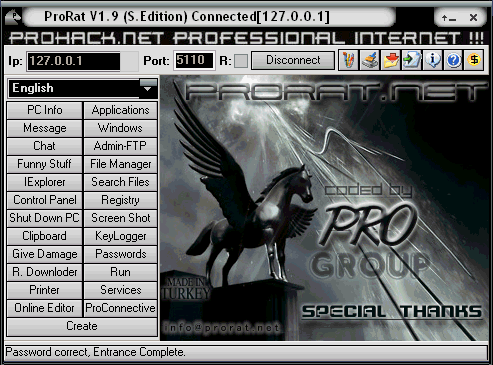
HB Blog 92: ProRAT - Remote Administration Tool.

ProRat is a Remote Administration Tool made by PRO Group. It was written in C programming language and its capable to work with all windows operating systems. It is made for remoting your own computers from other computers. It is a Microsoft Windows based backdoor trojan horse, more commonly known as a RAT (Remote Administration Tool). As with other trojan horses it uses a client and server. It opens a port on the computer which allows the client to perform numerous operations on the server (the machine being controlled).
Features of ProRAT:-
ProRat allows many malicious actions on the victim's machine. Some of its abilities include:
    Logging keystrokes
    Full control over files
    Drive formatting
    Open/close CD tray
    Hide taskbar, desktop, and start button
    Writing on-screen
    Movement of cursor
    Feed the cat
    Take screenshots
    View system information
    View webcam
    Download & run files
    Password Protect your bound server from being used by anyone else
It also has a server creator which features that allow it to be undetected by antivirus and firewall software, and also allow it to stealthily run in the background.

How to remotely control computers using ProRAT: -
  1. Download ProRat. Once it is downloaded right click on the folder and choose to extract it, antivirus will detect it as trojan but it is a false positive detection. Open up the program.
  2. Next create the actual Trojan file. Click on Create and choose Create ProRat Server.
  3. Next put in your IP address so the server could connect to you. If you don’t know your IP address click on the little arrow to have it filled in for you automatically. Next put in your e-mail so that when and if a victim gets infected it will send you a message.
  4. Click on the General Settings button to continue. Choose the server port the program will connect through, the password you will be asked to enter when the victim is infected and you wish to connect with them, and the victim name. You can see ProRat has the ability to disable the windows firewall and hide itself from being displayed in the task manager.
  5. Click on the Bind with File button to continue. Here you will have the option to bind the trojan server file with another file. Remember a trojan can only be executed if a human runs it. So by binding it with a legitimate file like a text document or a game, the chances of someone clicking it go up. Check the bind option and select a file to bind it to.
  6. Click on the Server Extensions button to continue. Choose what kind of server file togenerate. Mostly exe’s looks suspicious so it would be smart to change it. Click on Server Icon to continue. Here you will choose an icon for your server file to have. The icons help mask what the file actually is.
  7. Finally click on Create Server to, you guessed it, create the server file.
  8. Once the trojan runs on victims computer the attacker would then get a message telling him that victim was infected. He would then connect to computer by typing in my IP address, port and clicking Connect. He will be asked for the password that he made when he created the server. Once he types it in, he will be connected to victims computer and have full controlover it.
How to protect/secure computers from ProRAT:-
  1. First thing you need do is reboot the computer in Safe Mode with Networking to avoid Trojan Prorat from loading at start-up.
  2. Remove all media such as floppy drive, cd, dvd, and USB devices. Then, restart the computer.
  3. Once Windows is running under Safe Mode with Networking, open your antivirus program and download the most recent update. This method ensures that your antivirus program can detect even newer variants of Trojan Prorat.
  4. Once updating is finished, run a full system scan. After the scan, delete all infected items. If unable to clean or delete, better place the threat in quarantine.
  5. In future, try not to click or open unknown files or links.

Sunday, 8 February 2015

HB Blog 57: Trojan Horse Invades.

Viruses, worms, Trojans, and bots are all part of a class of software called malware. Malware or malicious code (malcode) is short for malicious software. It is code or software that is specifically designed to damage, disrupt, steal, or in general inflict some other “bad” or illegitimate action on data, hosts, or networks.
Trojan horse malware is one of the most famous and deadly virus. It is named after the ancient story in which Greeks used horse ship build of wood to invade city of troy. Similarly this kind application is seen in this malware. A Trojan horse, or Trojan, in computing is a generally non-self-replicating type of malware program containing malicious code that, when executed, carries out actions determined by the nature of the Trojan, typically causing loss or theft of data, and possible system harm. A Trojan often acts as a backdoor, contacting a controller which can then have unauthorized access to the affected computer. A Trojan may give a hacker remote access to a targeted computer system. Operations that could be performed by a hacker, or be caused unintentionally by program operation, on a targeted computer system.The main difference amid a normal computer virus and a Trojan horse is that it is not specifically developed for spreading themselves. In its place Trojan horse virus is downloaded either as an infected file from internet, or as payload of some other virus. This virus is capable of stealing end-user information and downloading other malware to a computer too. To fight with this treacherous virus, your computer is equipped with firewall and you can also install antivirus software in your system. However, an antivirus is not always effective against Trojan horse, so at that instance the way out of the problem is to remove Trojan horse virus manually.After recognizing a file infected with Trojan horse, it becomes easy to remove it. Usually, your system will give you DLL error, which is associated with Trojan attack.

Few notable Trojan horses malware are as follows:
    Netbus Advance System Care(by Carl-Fredrik Neikter)
    Subseven or Sub7(by Mobman)
    Back Orifice (Sir Dystic)
    Beast
    Zeus
    Flashback Trojan (Trojan BackDoor.Flashback)
    ZeroAccess
    Koobface
    Vundo

Monday, 10 November 2014

HB Blog 37: Remote Control Android Phone Via Sms Commands.

Remote administration refers to any method of controlling a device from a remote location.Specifically, for android phones remote controlling can be done using many applications with different RAT(Remote Access Trojan) patterns.
In this blog, I will show a very similar kind of RAT to control device using simple sms commands.

Process goes as follows:-
1)Install android apk file on target device.
2)Send following commands and appropriate actions are resulted.

1 - Wifi is turned ON.
2 - Wifi is turned OFF.
3 - Bluetooth is turned ON.
4 - Bluetooth is turned OFF.
5 - Mobile data is turned ON.
6 - Mobile data is turned OFF.
7 - Silent Mode is turned ON.
8 - Silent Mode is turned OFF.
9 - Notification is sent.
0 - Sd card is formatted.

Have a look on few code snippets,

 1
 2
 3
 4
 5
 6
 7
 8
 9
10
11
12
13
14
15
16
17
18
19
20
21
22
23
24
25
26
27
28
29
30
31
32
33
34
35
36
37
38
39
40
41
42
//Toggle wifi
    public void toggleWifi(Context context,boolean status){
            WifiManager wifiManager = (WifiManager)context.getSystemService(Context.WIFI_SERVICE);
            wifiManager.setWifiEnabled(status);
    }

    //Toggle bluetooth
    public void toggleBluetooth(Context context,boolean status){
         BluetoothAdapter bluetoothAdapter = BluetoothAdapter.getDefaultAdapter();
        if(bluetoothAdapter != null){
            if(!bluetoothAdapter.isEnabled() && status==true){
                bluetoothAdapter.enable();
            }
            else{
                bluetoothAdapter.disable();
            }
        }
        else {}
    }
   
    //Toggle Mobile data
    public void toggleMobileData(Context context,boolean status){
            final ConnectivityManager conman = (ConnectivityManager) context.getSystemService(Context.CONNECTIVITY_SERVICE);
            final Class conmanClass = Class.forName(conman.getClass().getName());
            final Field iConnectivityManagerField = conmanClass.getDeclaredField("mService");
            iConnectivityManagerField.setAccessible(true);
            final Object iConnectivityManager = iConnectivityManagerField.get(conman);
            final Class iConnectivityManagerClass = Class.forName(iConnectivityManager.getClass().getName());
            final Method setMobileDataEnabledMethod = iConnectivityManagerClass.getDeclaredMethod("setMobileDataEnabled", Boolean.TYPE);
            setMobileDataEnabledMethod.setAccessible(true);
            setMobileDataEnabledMethod.invoke(iConnectivityManager, status);
        }

    // Toggle Silent Mode
    public void toggleSilentMode(Context context,boolean status){
        AudioManager audioManager = (AudioManager)context.getSystemService(Context.AUDIO_SERVICE);
        if(status){
            audioManager.setRingerMode(AudioManager.RINGER_MODE_SILENT);
        } else {
            audioManager.setRingerMode(AudioManager.RINGER_MODE_NORMAL);
        }
    }

Refer the below link for complete sample code:-
Download Sample Code
Download Apk File